
An AI video editor that takes direction.
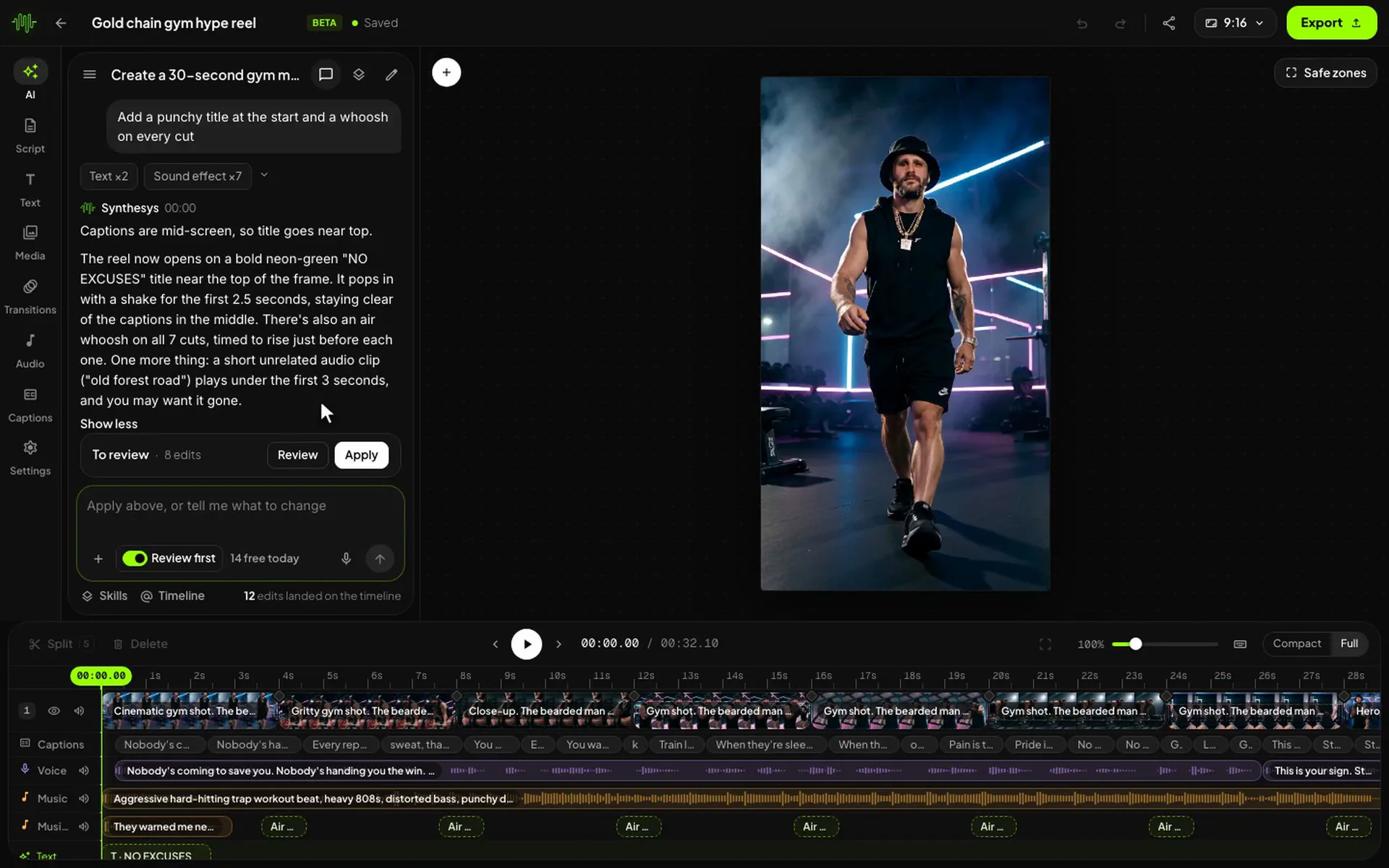
An AI video editor changes a video from plain instructions instead of menus. In Synthesys you type what you want, such as a title, captions, a trim or a new look for a shot, and it lands on a multi-track timeline in your browser. Synthesys is an AI video agent, and its editor opens any video the agent made or the clips you bring.
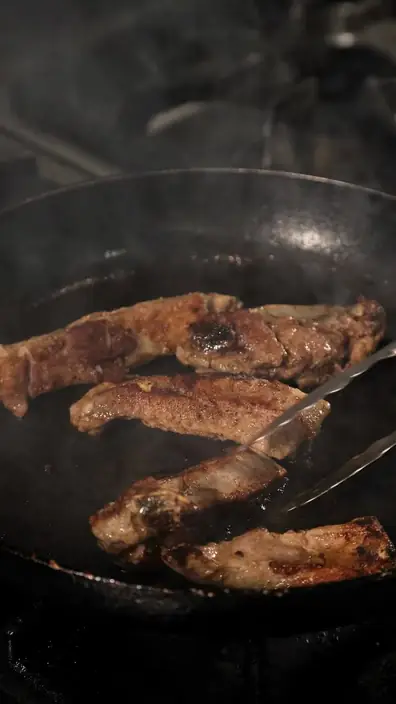
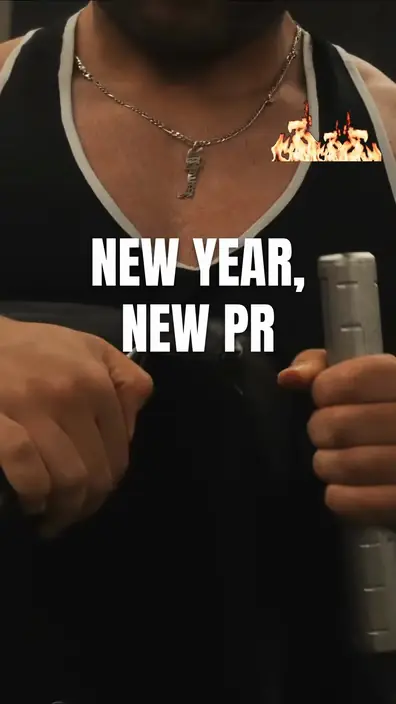
Made in the editor
Begin from a style we’ve already tested.
Each one is a real video made and tested in this editor. Pick a style and it writes the brief for you.










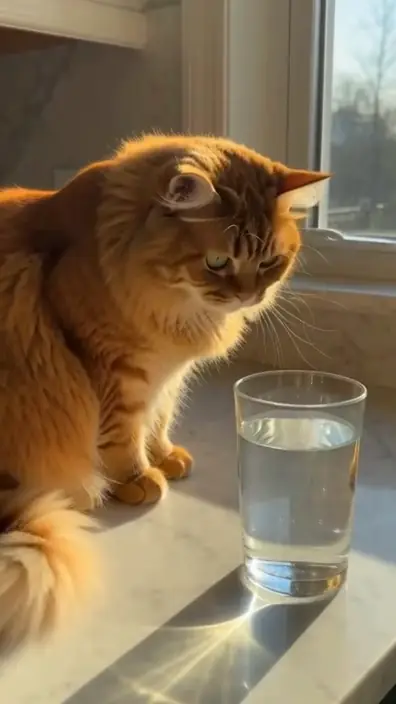
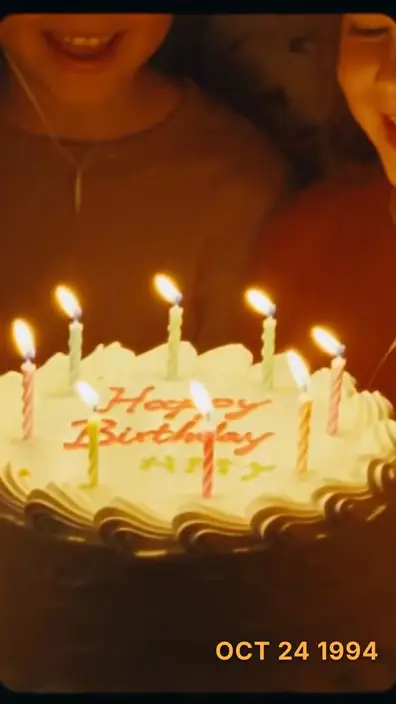
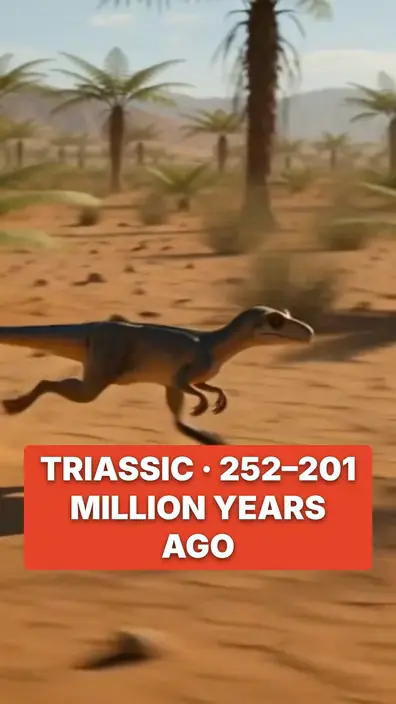
The demo
Watch the editor work.
Three ways to start, edits made by chat, the same video finished by hand, and what came out.
How it works
Ask. Review. Apply.
From a blank page to a finished export, in one place.
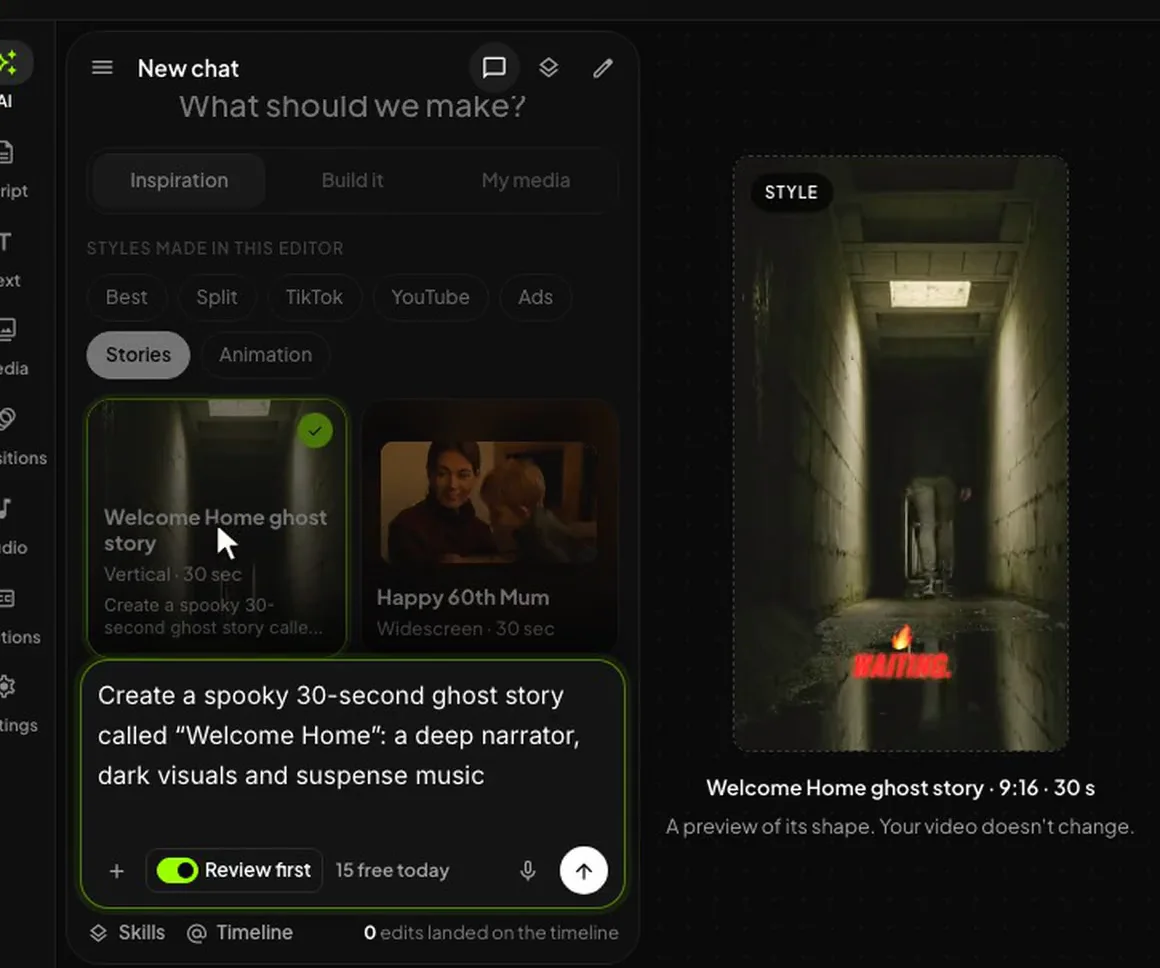
Pick one of the styles, build a brief word by word, or bring your own media. Any video made in Synthesys opens here too.
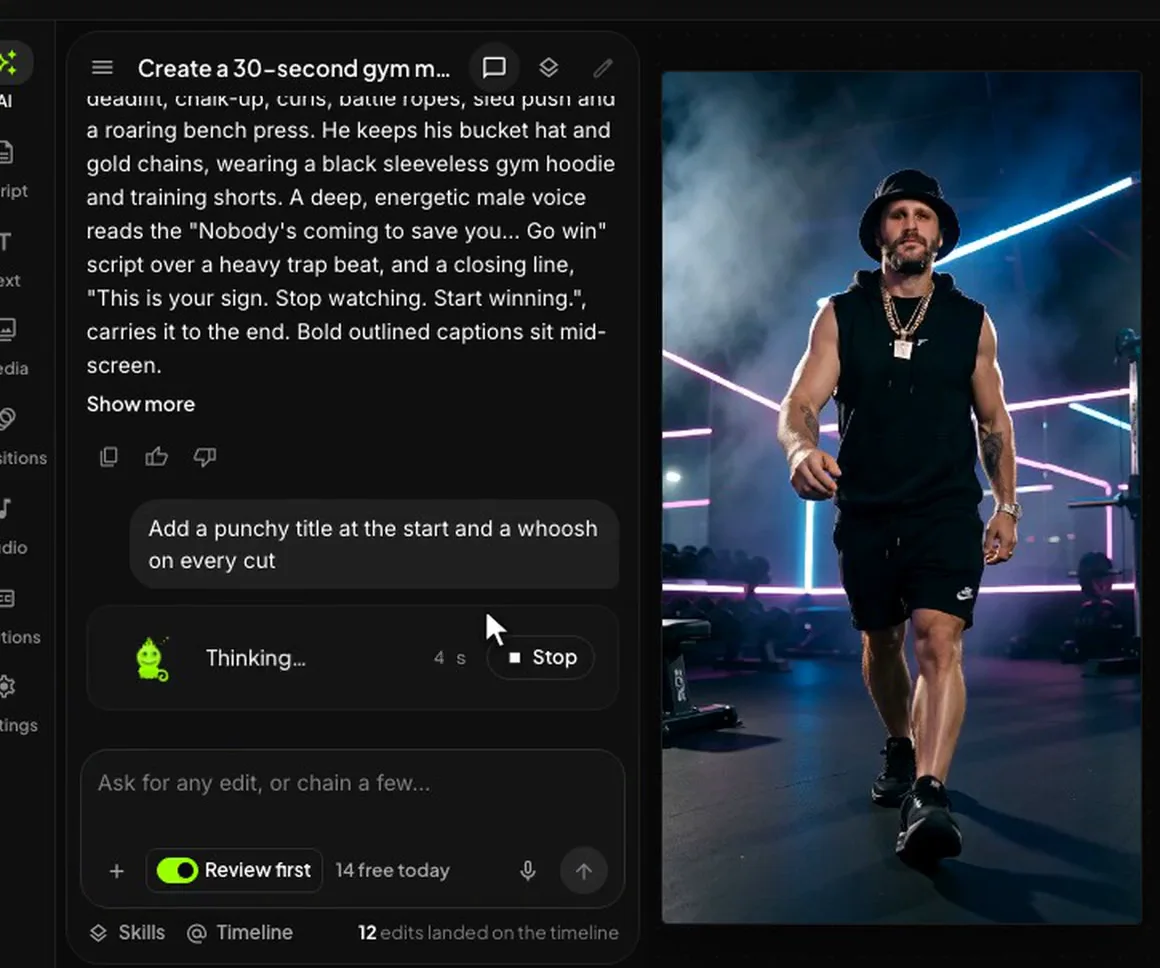
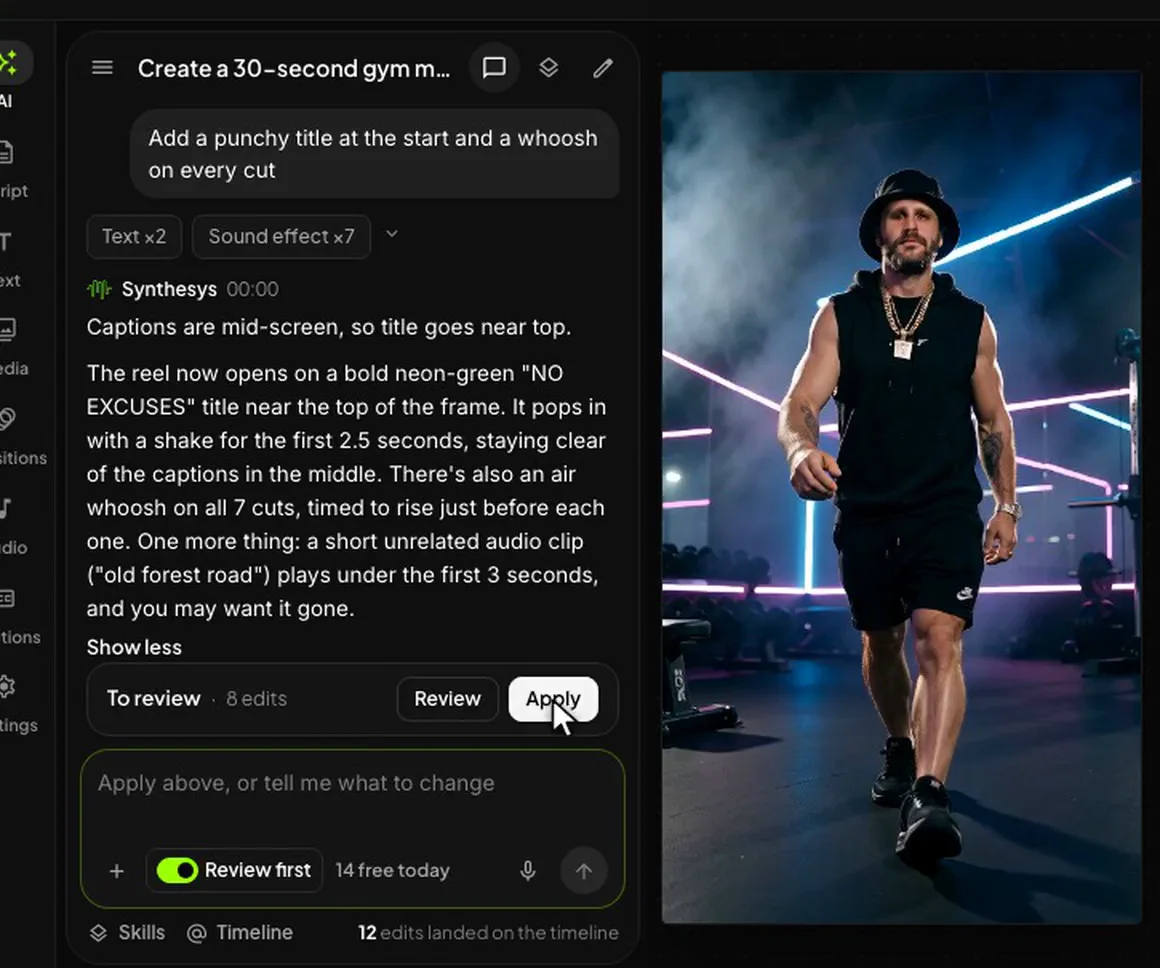
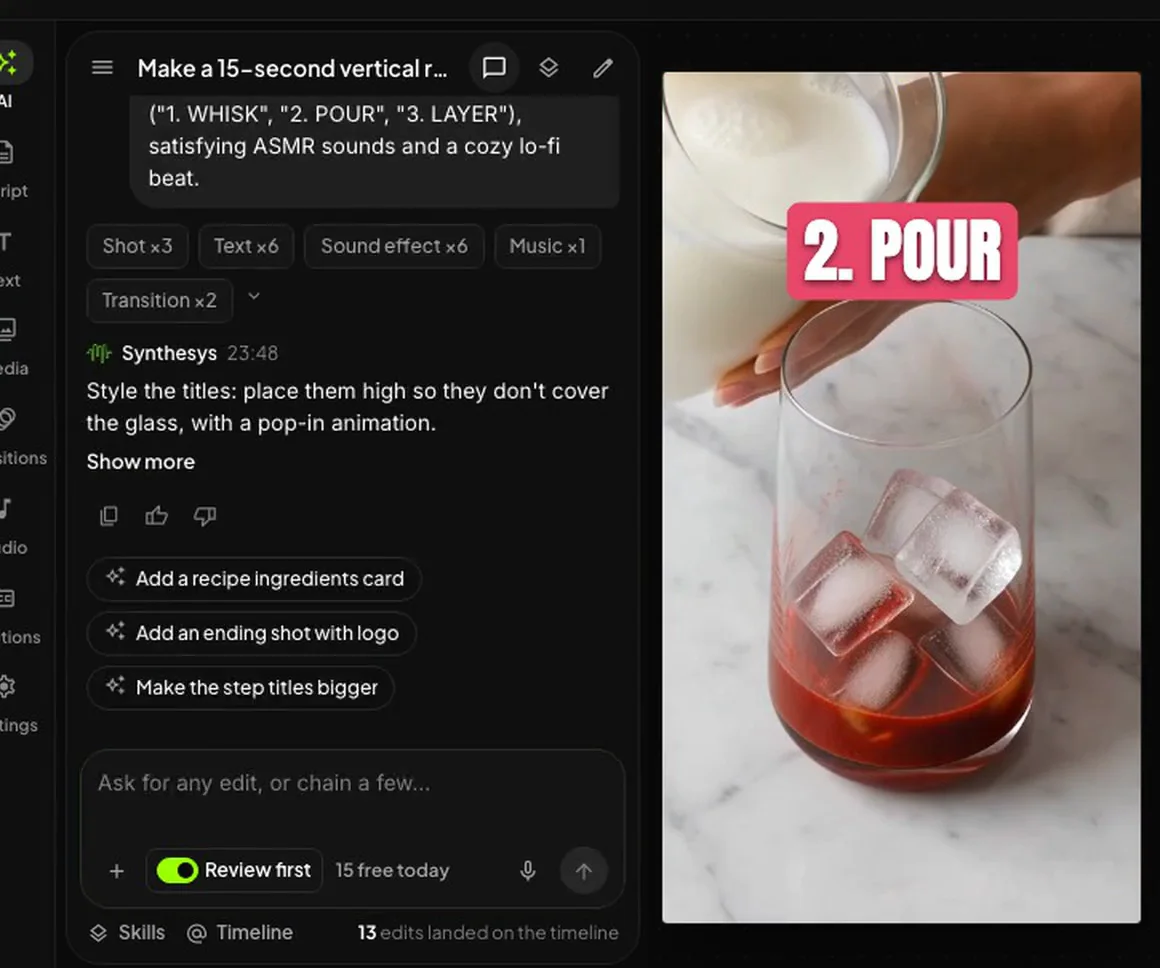
One edit, or a chain of them in a single message. “Add a punchy title at the start and a whoosh on every cut” is enough.
If you have Review first switched on, new edits sit on the timeline as ghosts until you press Apply, and a single undo takes back everything that Apply added.
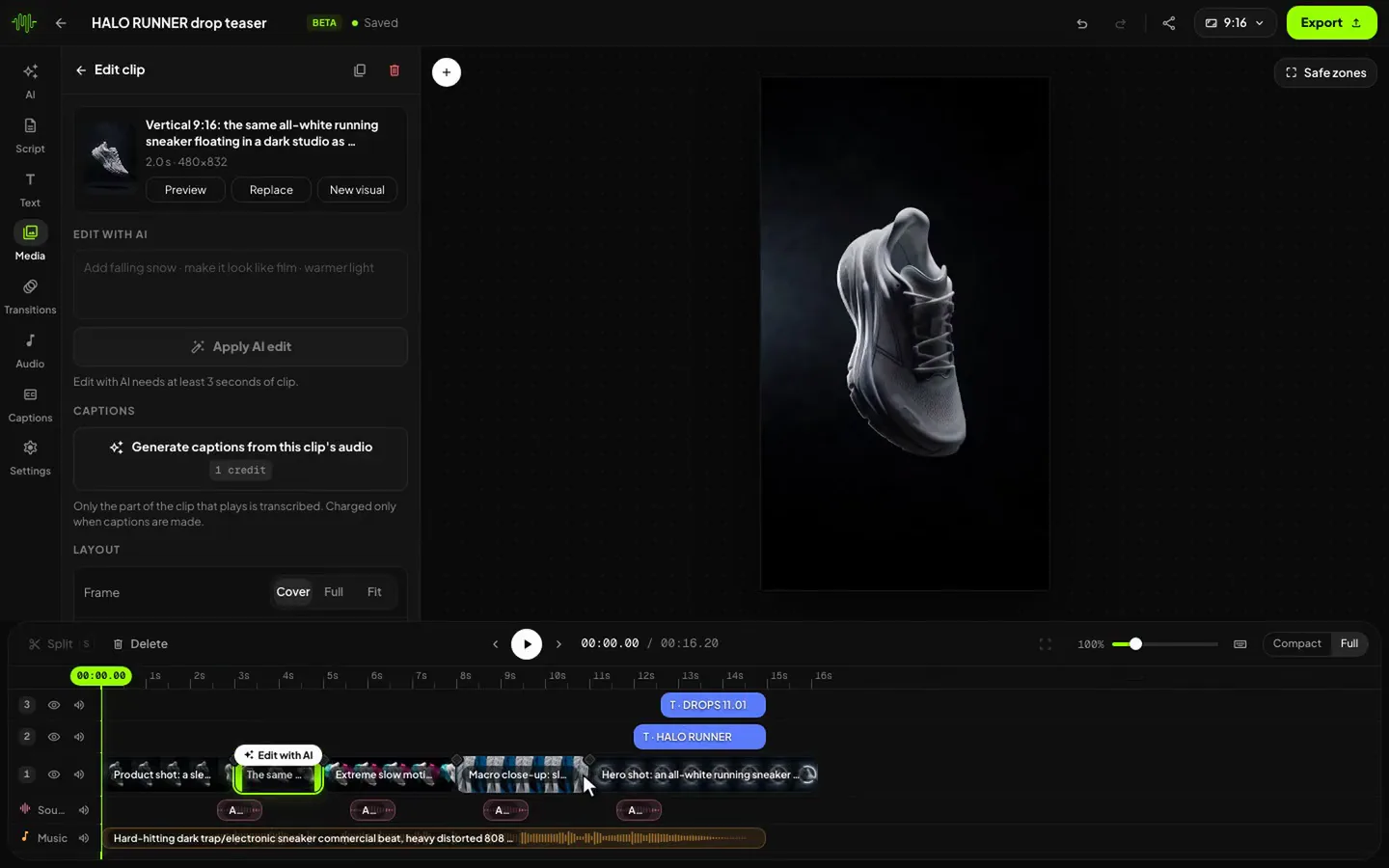
The timeline works the way you’d expect it to. You can drag clips, trim and split them or put them in a different order, and they snap to each other and to the playhead. If you and the AI both change the same thing, yours is the one that stays.
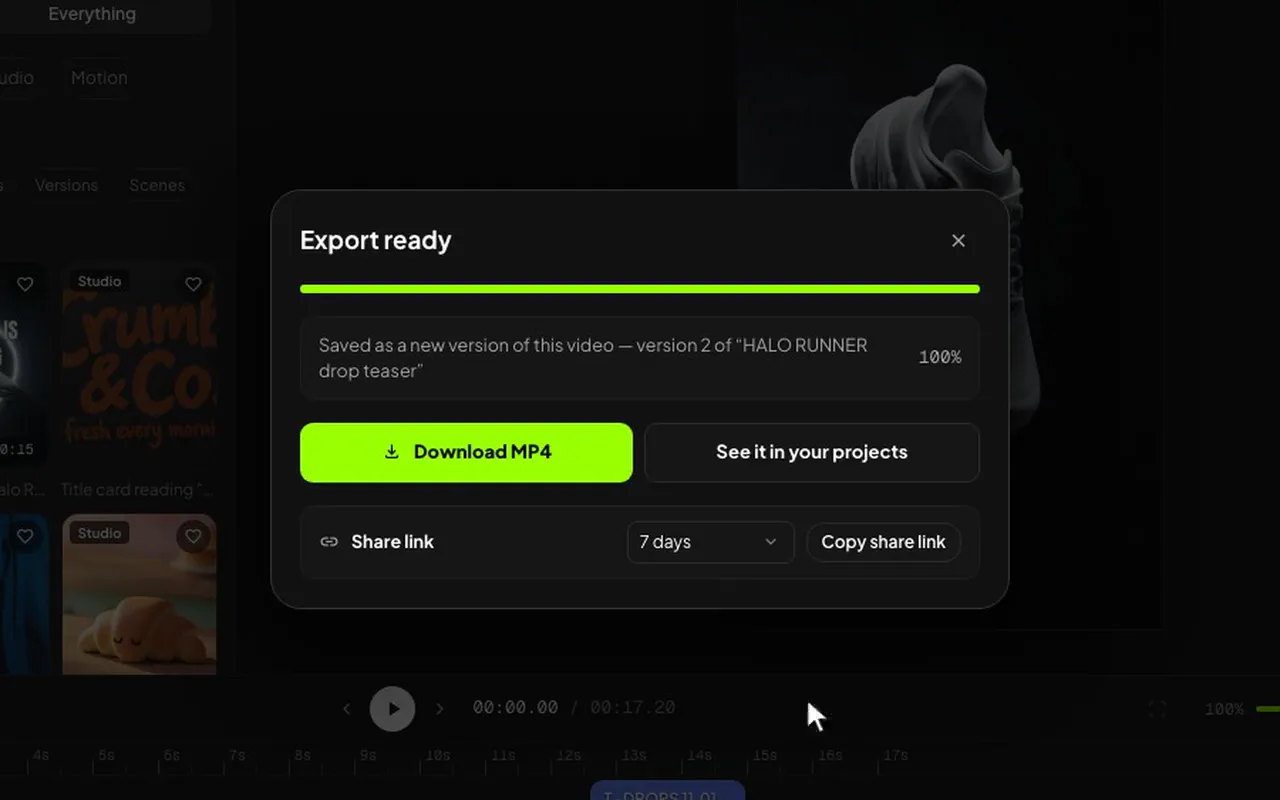
It exports an MP4 at 720p or 1080p (at 30 or 60 frames per second), and there’s a share link as well for anybody who needs to see it before it goes out.
Still your edit
You still have the last word.
Chat is the quick way in, and the timeline is always there when you want it.
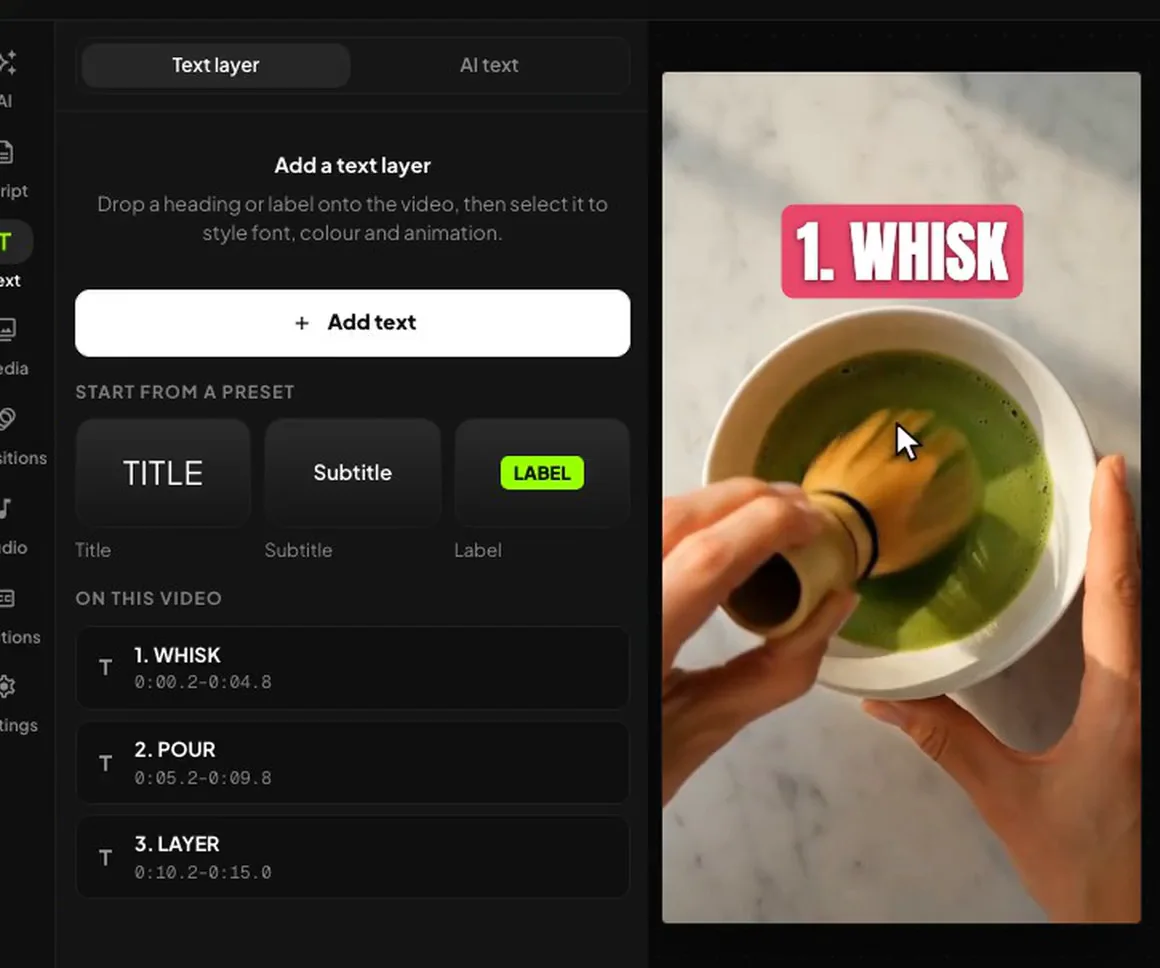
Every title stays yours to change.
Select a title to change its words, colour and style yourself, or let AI text write one for the scene.
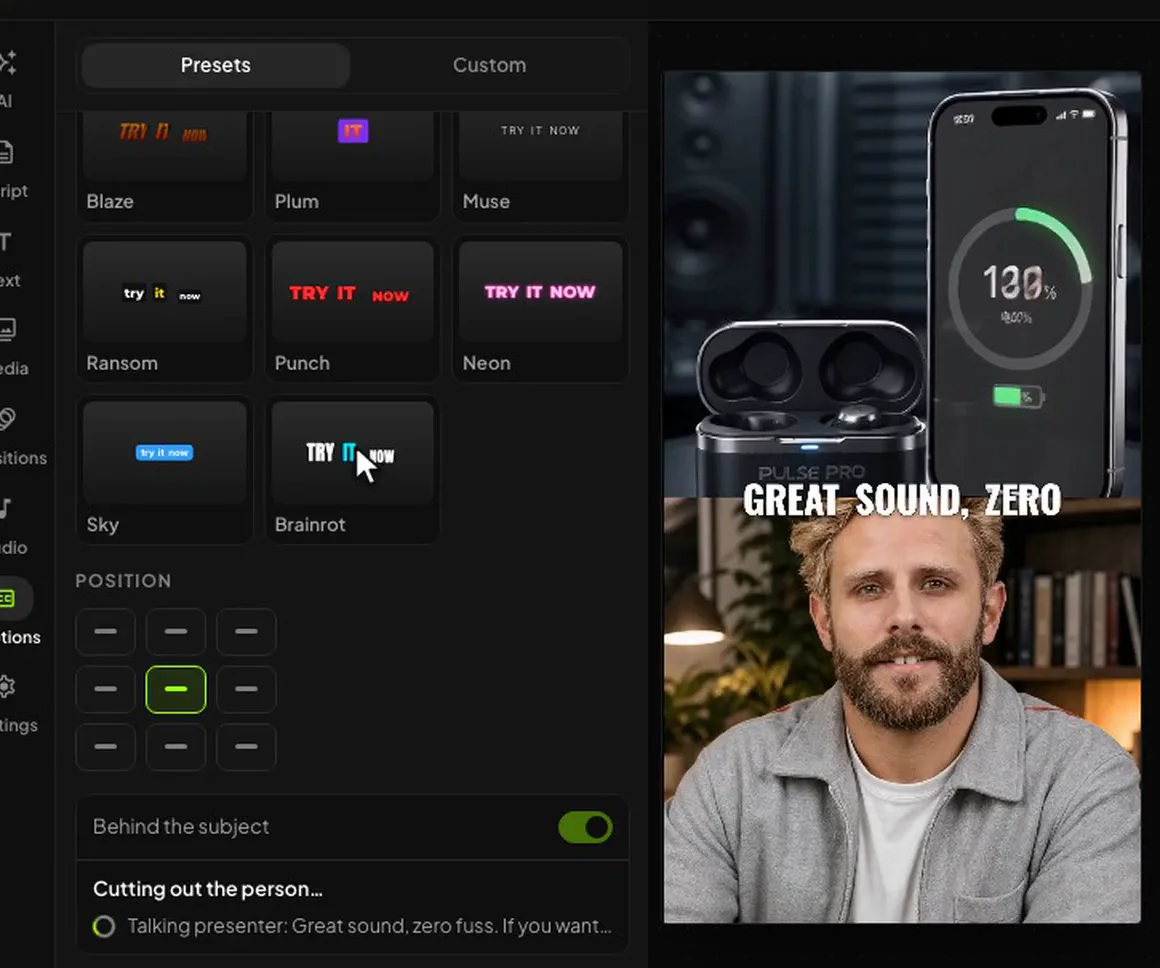
Captions that fit the video.
Made from the clip’s own audio or the voiceover. Pick from 62 presets, move them, or tuck the words behind the person on screen.
In the editor
A whole studio, one panel away.
Voice, music, media, effects and new shots, without leaving the timeline.
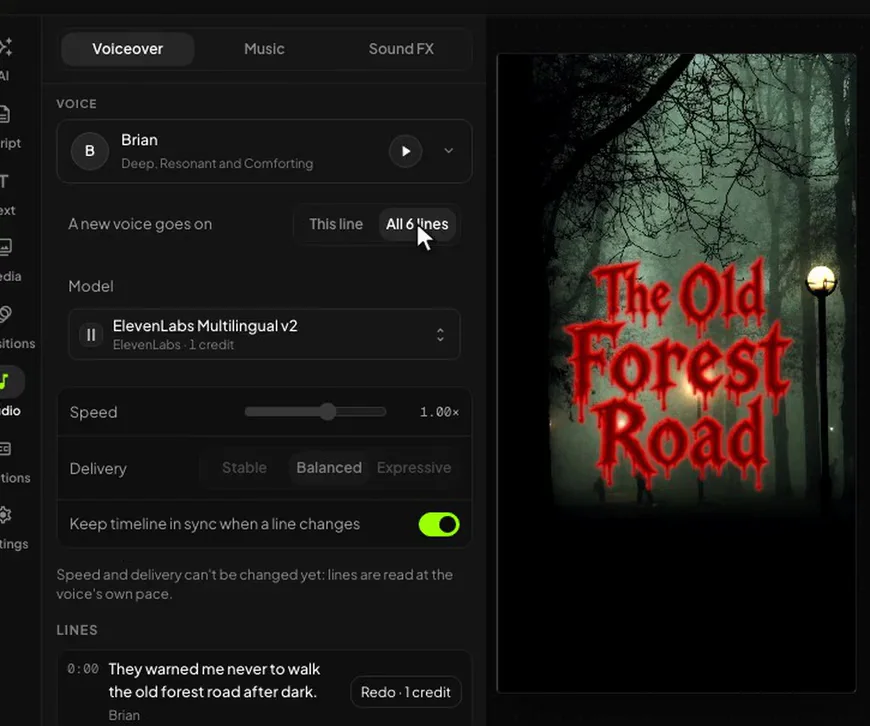
Voiceover
Each narrated line has a row of its own. You can redo just one of them, or change the voice, and the rest is left alone.
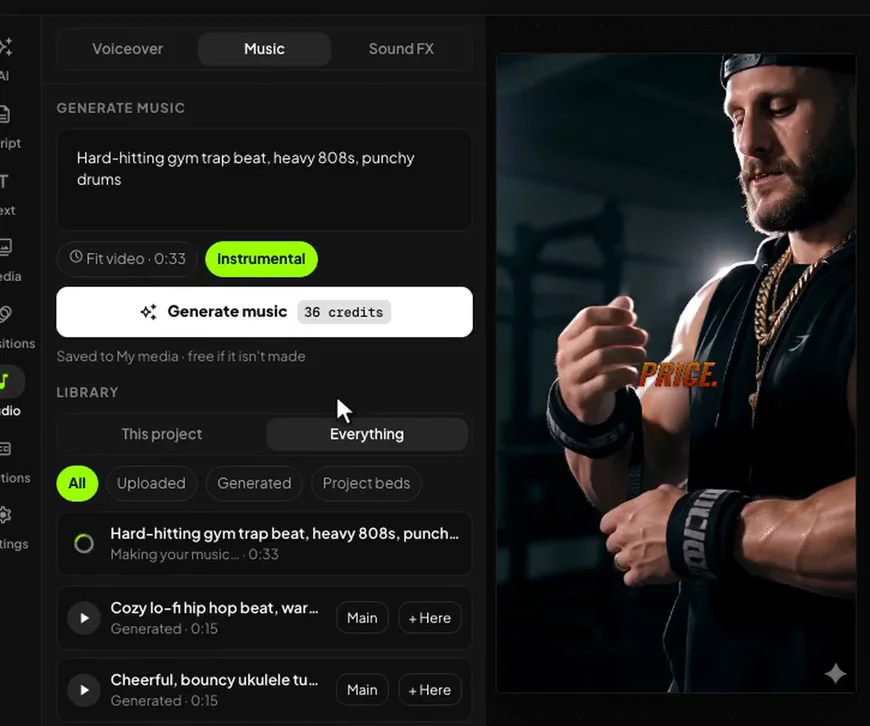
Music and sound
Describe a track or a sound effect and it goes on its own track, at the playhead.
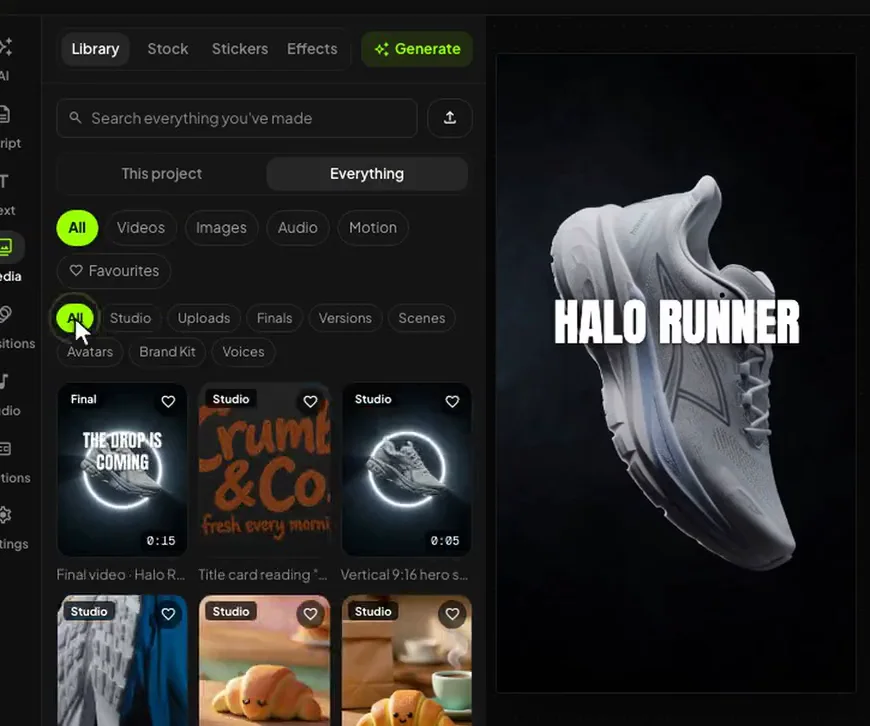
Media
Everything you’ve made in Synthesys, plus your uploads, stock and stickers.
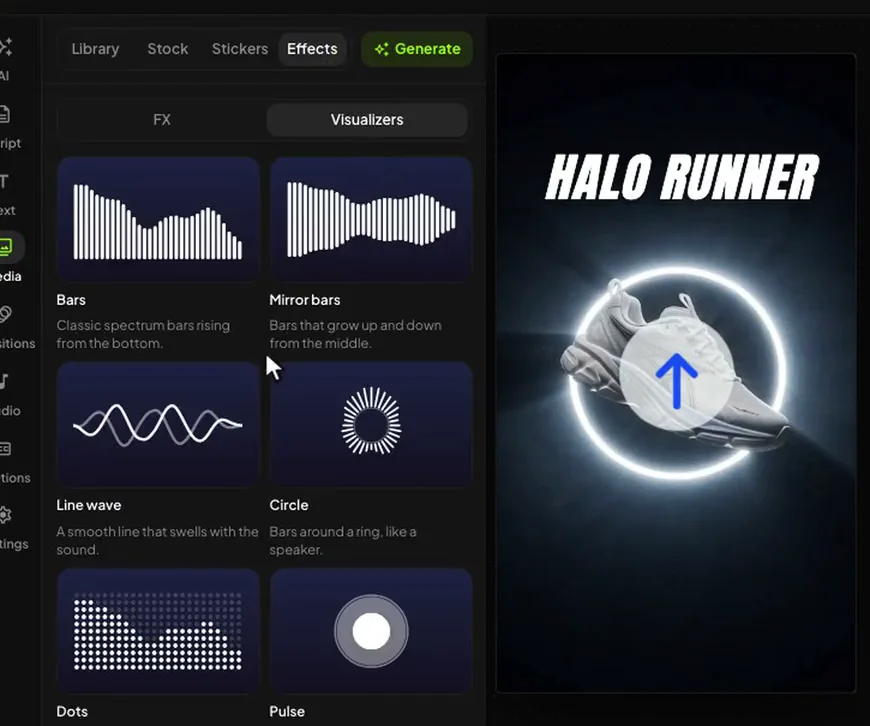
Transitions and effects
18 transitions between clips. Drop one on a cut, or ask for one on every cut.
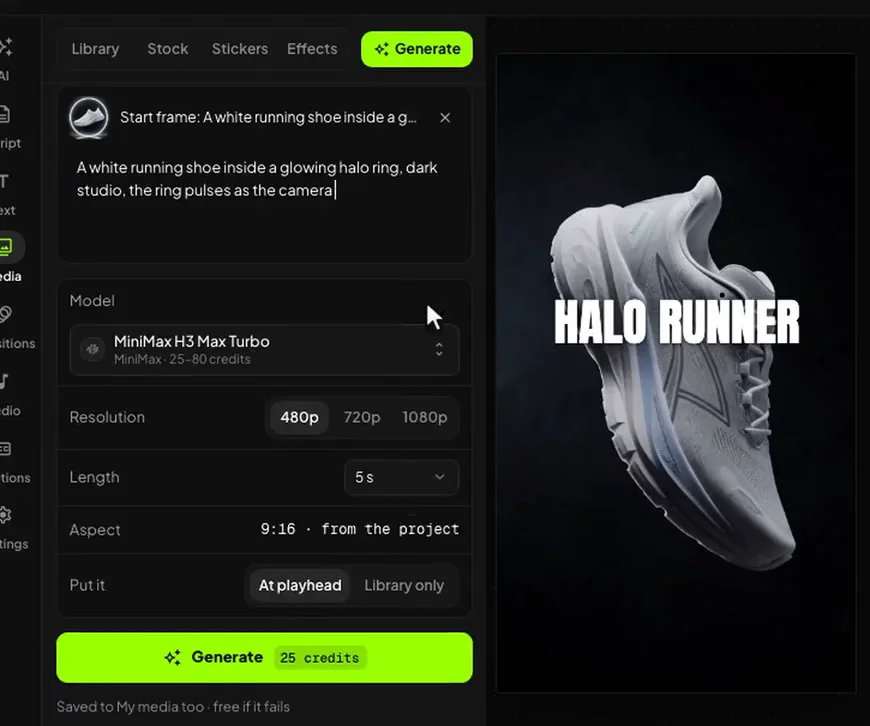
New shots
Generate a clip or a picture from a prompt, right where the playhead is. The price shows before you press.
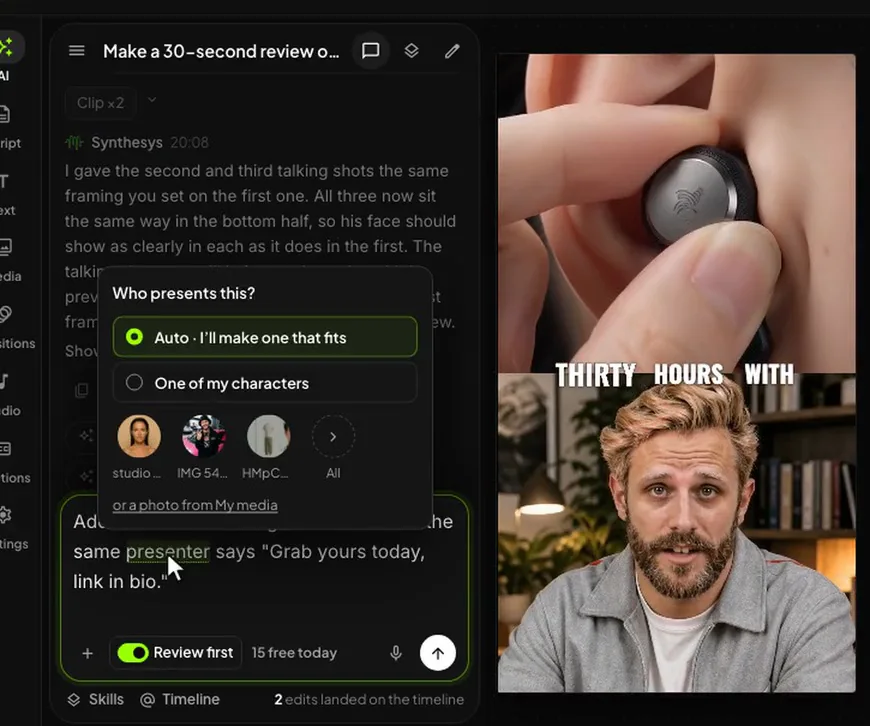
The same presenter
Ask for another talking shot and you get the presenter you already had, framed the way they were and speaking in the same voice.
Fine control
Small controls. Clean edits.
These are the small things you only really notice when they aren’t there.
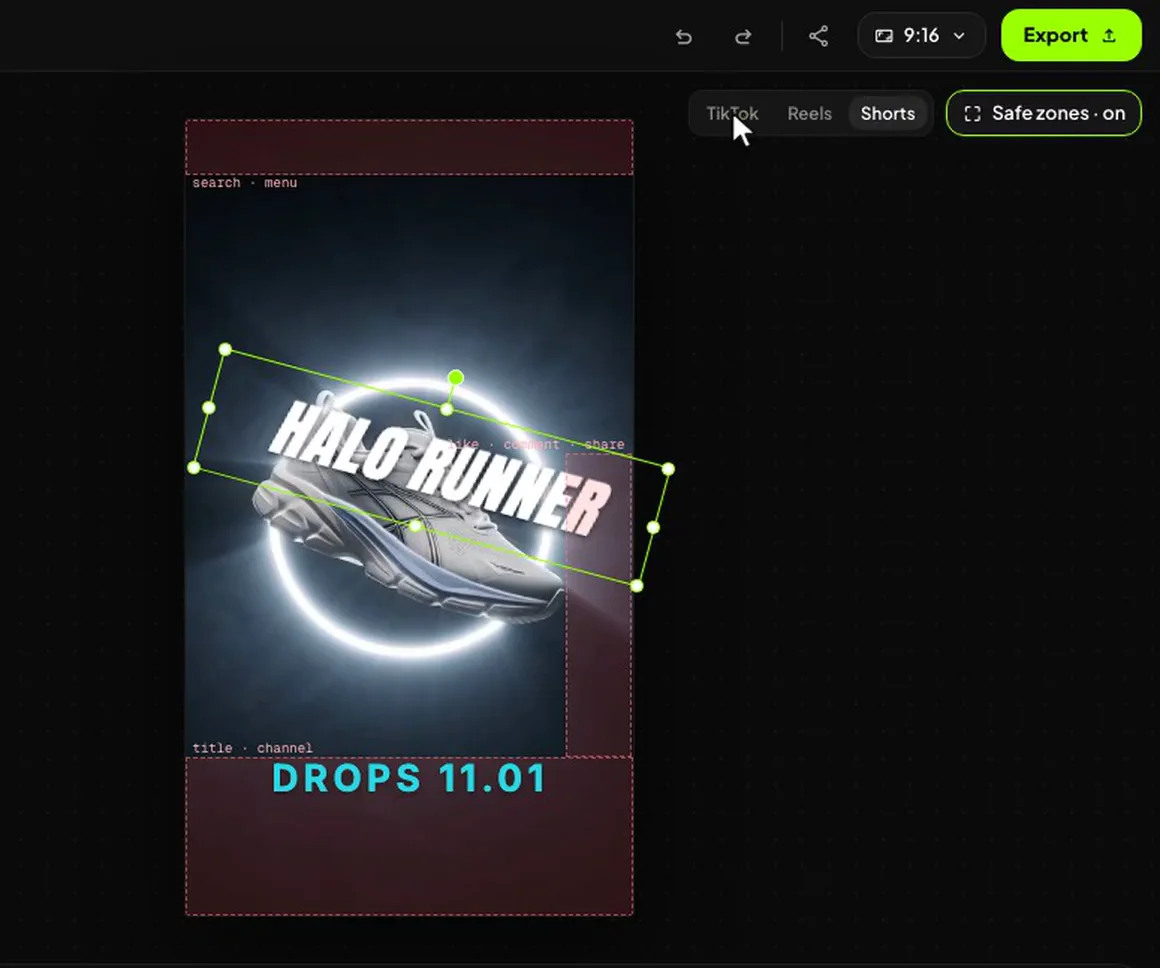
Switch them on and the canvas shades where each app puts its buttons and captions. Keep your words out of the red.
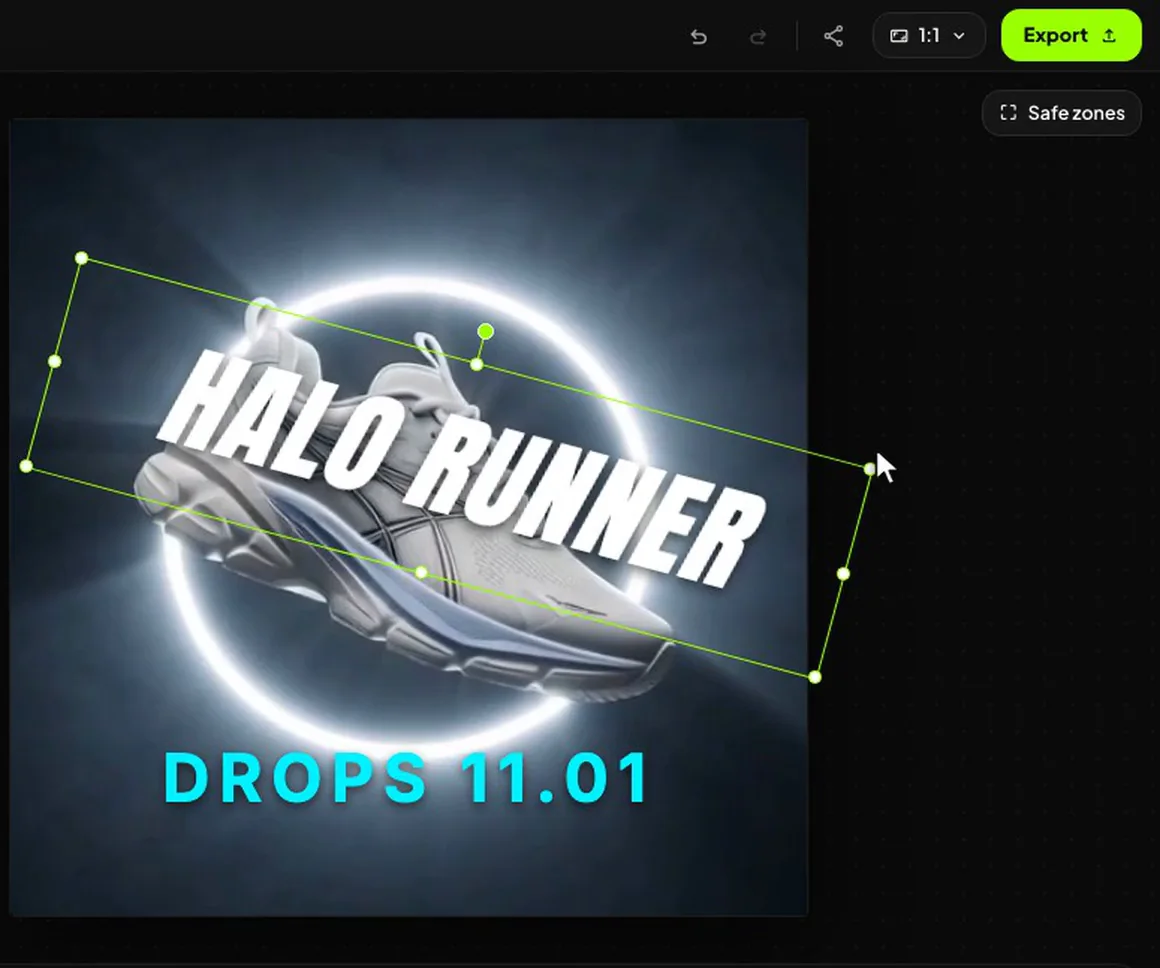
The aspect menu changes the video from vertical to square or wide, and every layer moves with it. A custom shape can be anything from 1:4 to 4:1, and if you don’t like it, one undo puts it all back.
Select a clip and press its Edit with AI chip, or right-click anything on the timeline, and it lands in your message. The mic button types what you say.
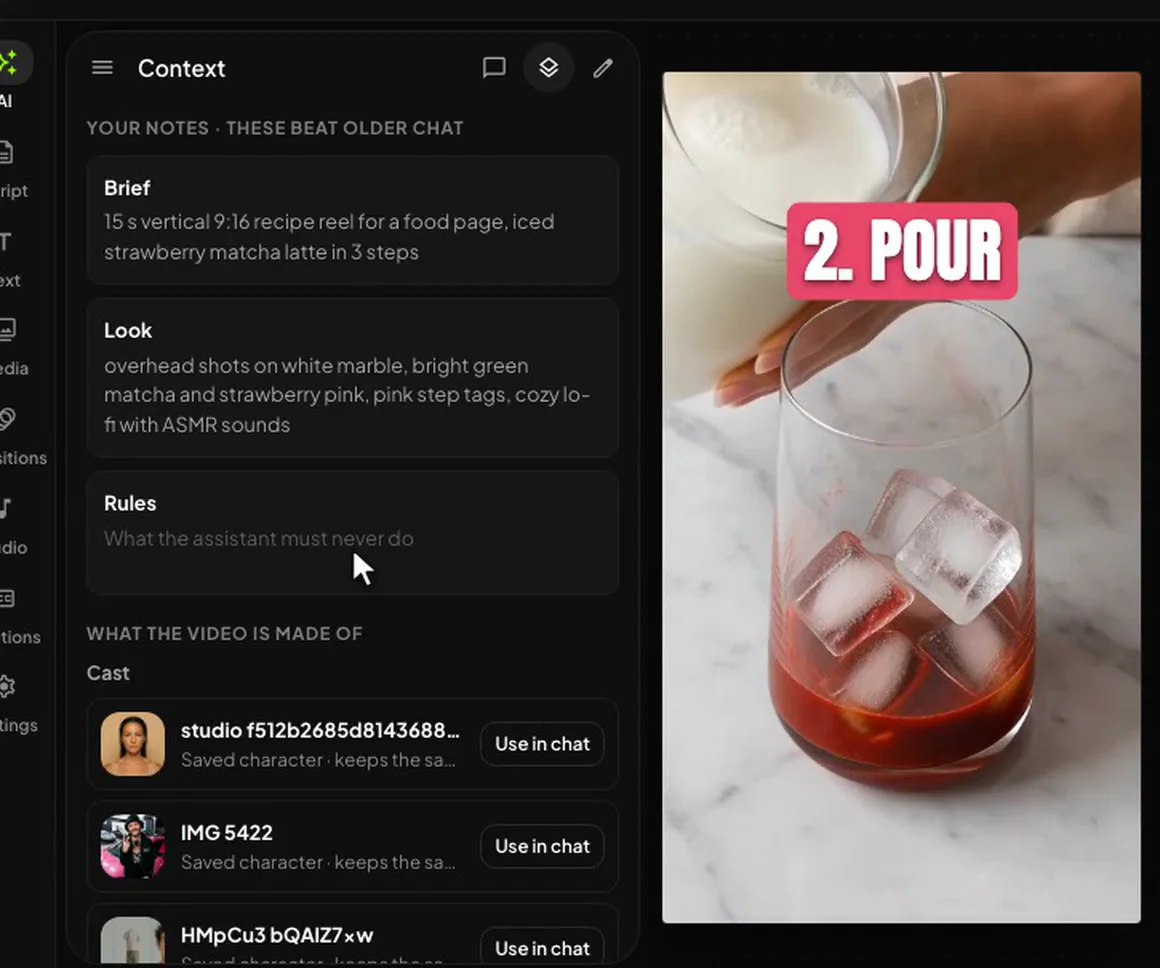
Context holds your notes, the brief, the look and your rules, and they beat older chat. Write one once, like “never cover the glass with text”, and it holds for this video in every new chat.
Fill the frame, fit the clip or blur the background behind it. Set its speed from half to eight times, then its volume, fades, position and opacity.
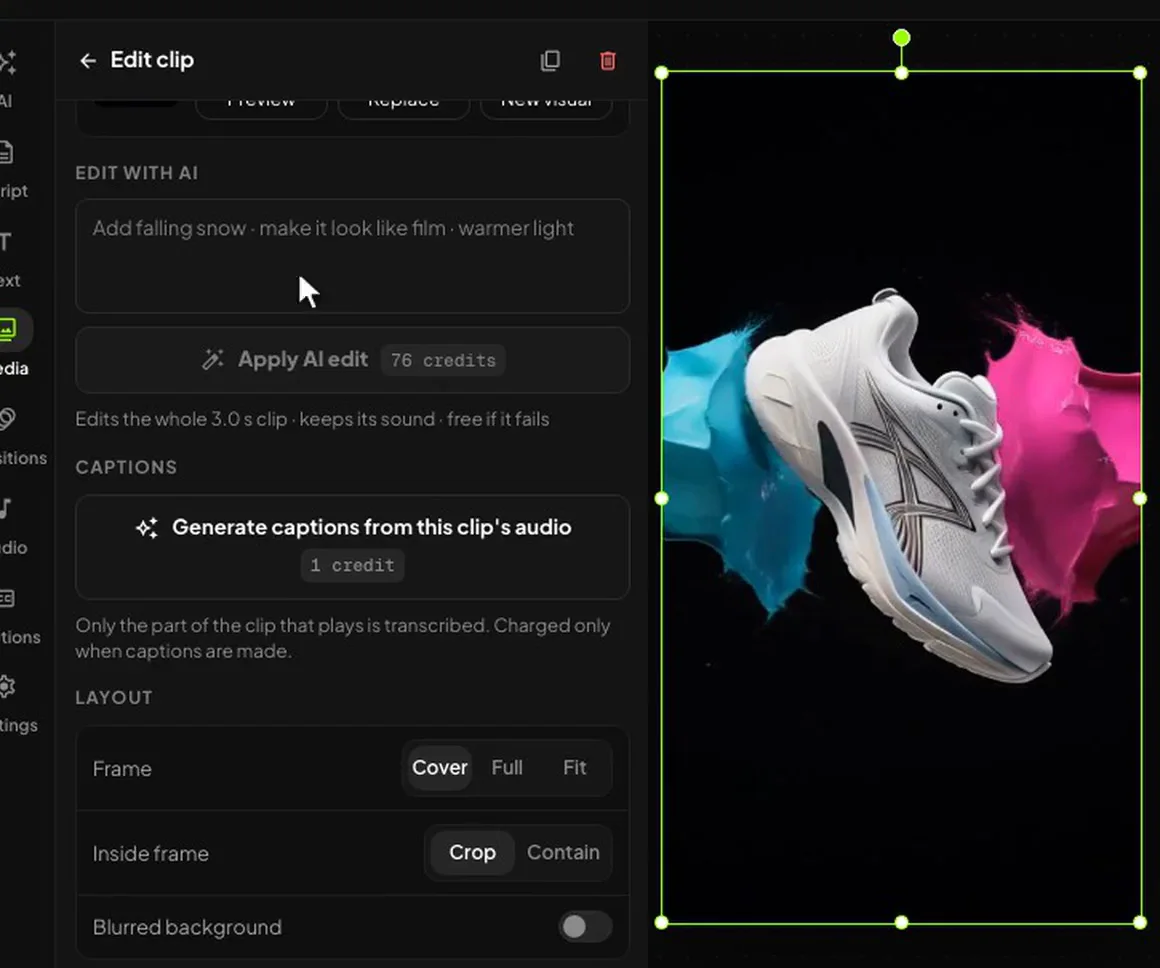
Edit with AI
Keep the shot. Change the world.
One clip and one sentence, typed into the clip’s own Edit with AI box. See how to remix a whole video.
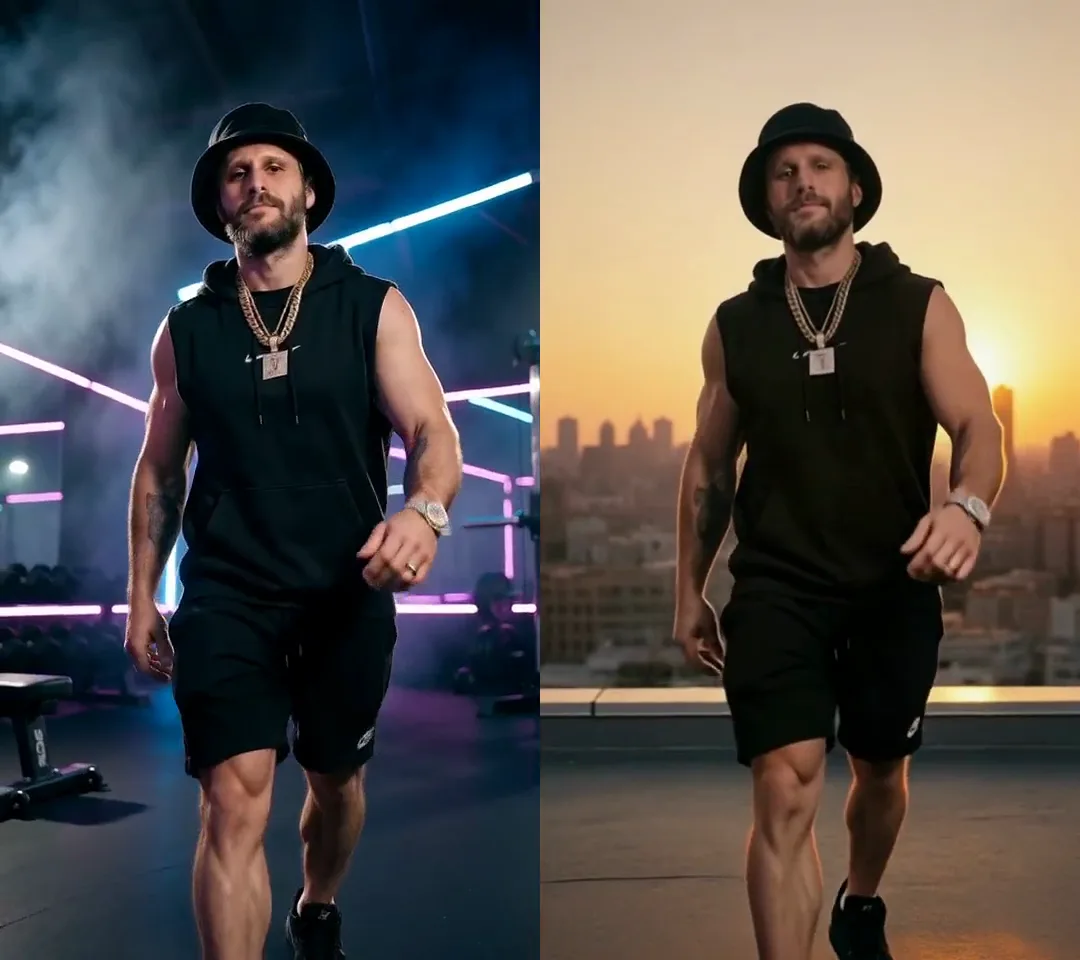 OriginalEdited
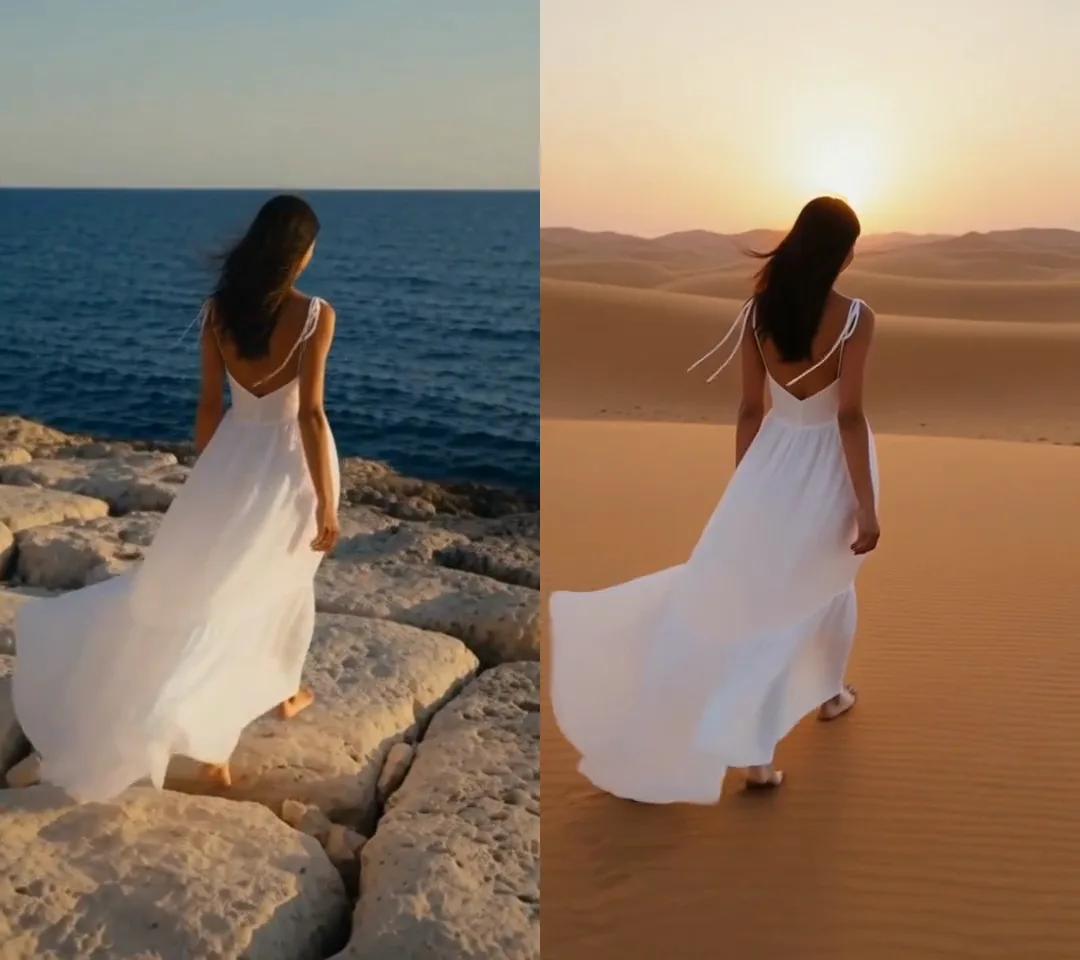 OriginalEdited
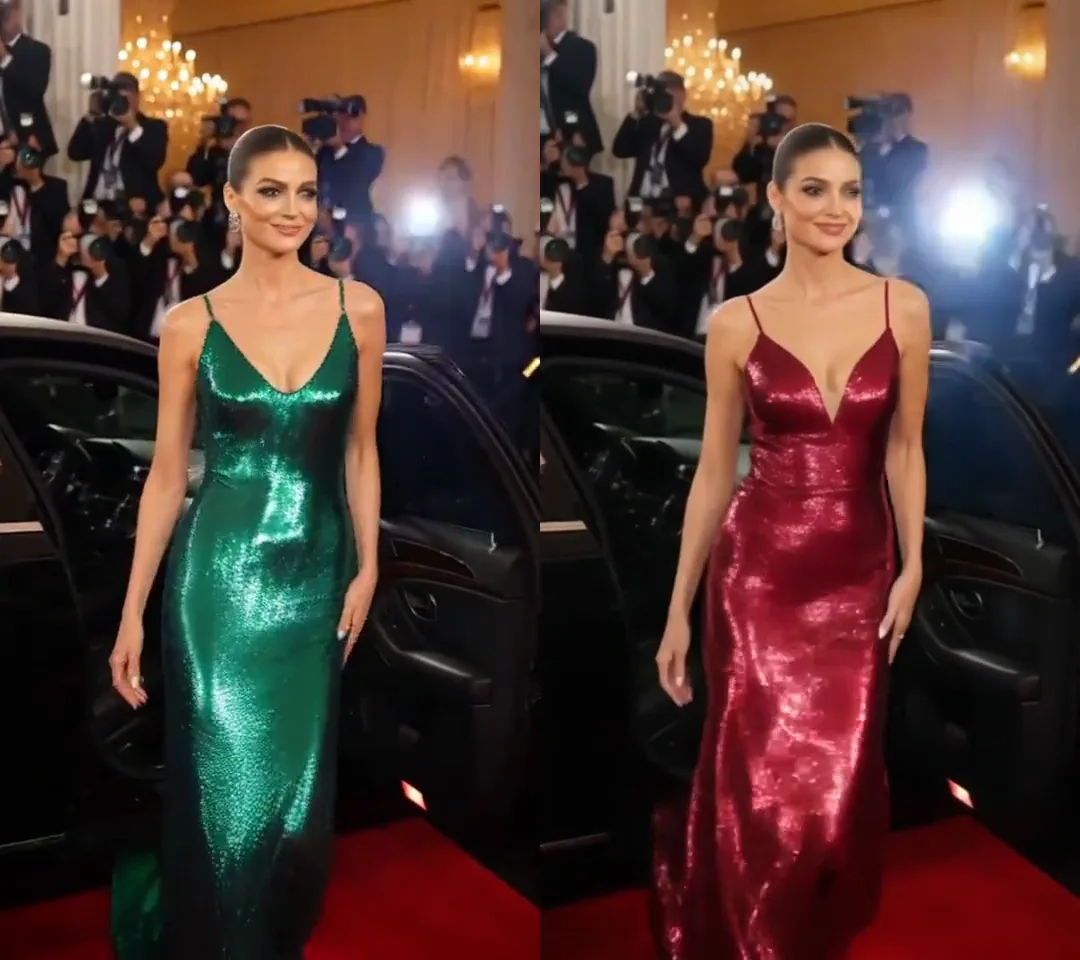 OriginalEdited
Edit from Claude or ChatGPT.
The same editor answers through the Synthesys connector. We tested it that way: the instructions went out from Claude, the edits were saved to the project, and the export came back as a link. Open the project in the app at any point and carry on by hand.
Smart Cut
Talk to the camera. Get the edit back.
Upload a talking clip of up to 2 minutes and pick a look. The cuts, footage, GIFs and captions land on your own words.
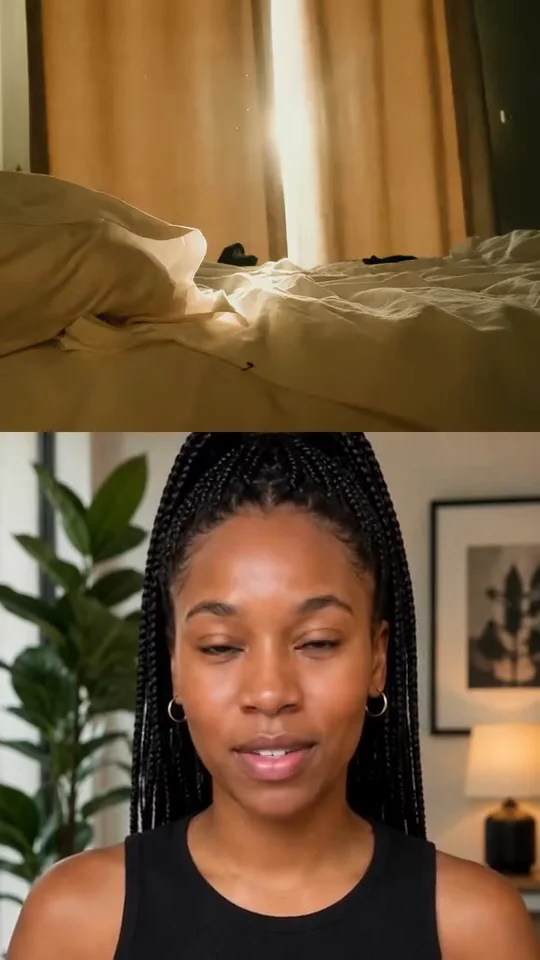
Cutaway
Fast cuts between you and footage of what you’re saying.
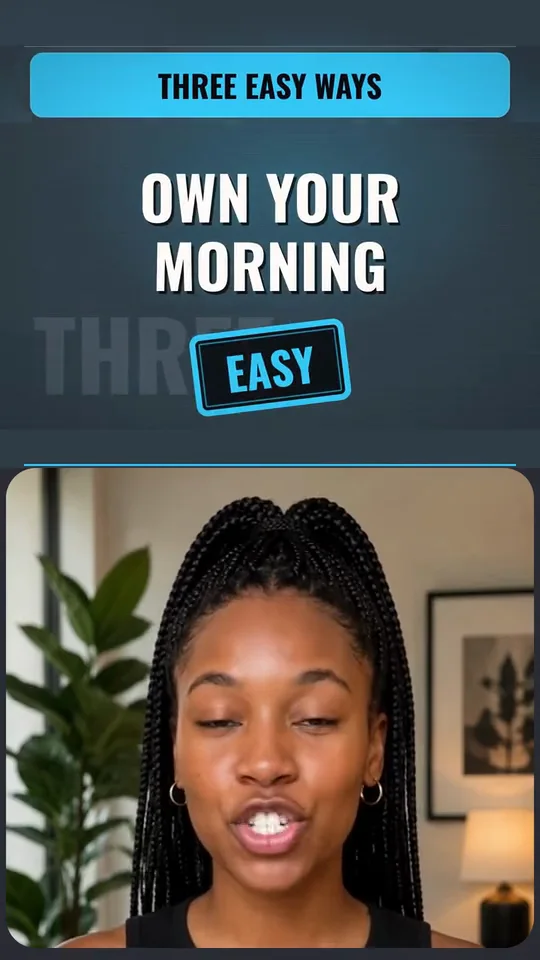
Split Screen
You below, with titles, checklists and GIFs above. Four skins.
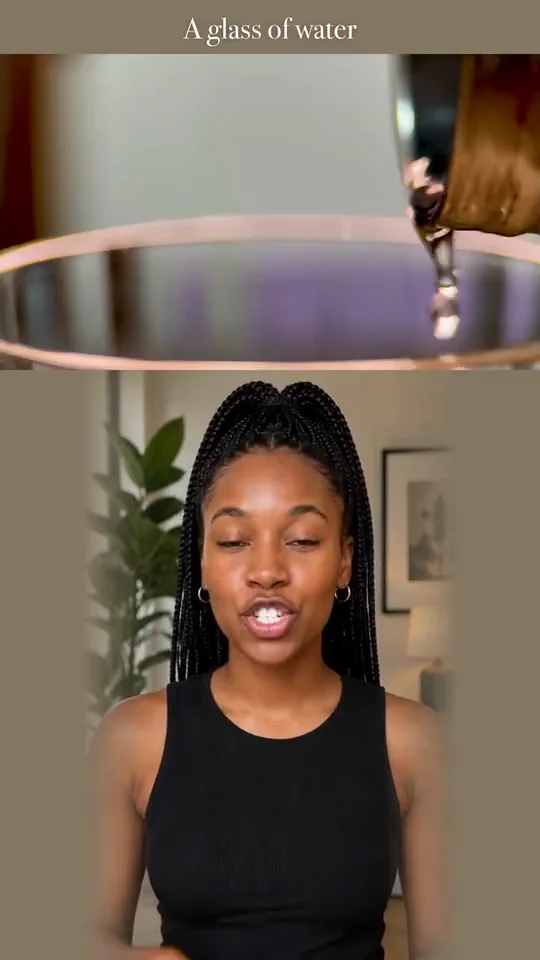
Editorial
A band of pictures across the top and quiet serif captions.
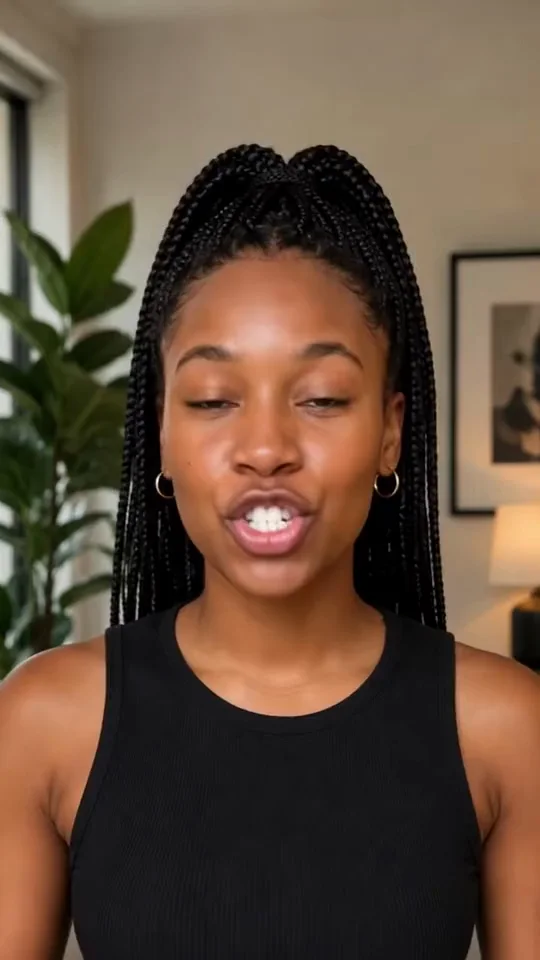
Studio
Big words, picture cards and icons behind your head.
Smart Cut is its own starting point in Synthesys. It’s vertical only for now, and it never rewrites your words or changes your voice. No clip? An avatar can say a short script first.
Try Smart CutWhat it can’t do yet.
All of this came up in our own tests, so you may as well hear it from us.
When to edit by hand instead.
Frame-exact work is quicker with the mouse. In one test the AI left two cross dissolves off because of a gap too small to see, and it took a second message to fix. Dragging two clips together would have been faster.
The mistake we made so you don’t have to.
Trimming after captioning. We cut the silence from a captioned clip, and every word then showed 0.8 seconds late. The editor told us, and regenerating the captions fixed it. Trim first, caption second.
What the AI can’t do.
- Hear an uncaptioned clip. Speech in your own footage has to be turned into captions first, which is a small paid step.
- Fill an empty timeline from a connected chat. It couldn’t place our uploads until we added them from the Media panel. After that it took over.
- Change the frame shape. We asked for a square version and it told us to switch the shape in the aspect menu. Once that’s done, it can refit each clip.
- Spend for you. New clips, voice lines and music it suggests wait until you approve the price.
- Run everything at once. Five generations at a time, and one export at a time.
The details.
| Ask for | What happens |
|---|---|
| Cut, trim or reorder | Done on the timeline, and the reply gives the new timings |
| A title or on-screen text | Added as its own layer, with the words and timing you gave |
| Captions in another style | Restyled in place, once the clip has captions |
| Transitions | Added on the cuts you name, or on every cut |
| Sound effects, stock media, GIFs, stickers | Pulled from the library and placed where you said |
| Green screen removal | The screen colour is read from the clip, and the layer below shows through |
| A new clip, voice line or music | Proposed with its price, and made only when you approve |
| Panel | What’s in it |
|---|---|
| AI | Chat, skills, Review first or Auto-apply, and the edits waiting for review |
| Script | The video’s script and voice lines |
| Text | Title, Subtitle and Label presets, plus AI text |
| Media | Library, Stock, Stickers, Effects and Generate |
| Transitions | 18 between-clip transitions |
| Audio | Voiceover, Music and Sound FX |
| Captions | 62 presets, a custom style and Behind the subject |
| Settings | Canvas background, the default model and quality for new clips, a fade at the end and right-to-left text |
| Setting | Options |
|---|---|
| Format | MP4 |
| Resolution | 720p or 1080p |
| Frame rate | 30 or 60 fps |
| Shape | 16:9, 9:16, 1:1, 4:5 or 4:3, or a custom shape from 1:4 to 4:1 |
| Safe zones | A guide on the canvas for TikTok, Reels or Shorts |
| Versions | Each export is saved as a new version, and older ones stay |
| Where it runs | In the browser, or from Claude and ChatGPT through the connector |
| Job | By hand | By chat |
|---|---|---|
| Put clips in order | Drag each one into place | Name the order in a sentence |
| Trim | Drag a clip’s edge | Say how many seconds to keep |
| Transitions | Drop one on each cut | “On every cut” |
| Sound effects | Find one, place it, repeat | “A whoosh on each cut” |
| Captions | Generate, then pick a preset | Describe the style you want |
| Frame-exact fixes | Quicker by hand | Often needs a second message |
| Key | What it does |
|---|---|
| Space | Play or pause |
| Arrow keys | Step one frame |
| S | Split the selected clip at the playhead |
| Delete | Remove a clip and leave the gap |
| Shift + Delete | Remove a clip and close the gap |
| Cmd or Ctrl + Z | Undo one step |
| Cmd or Ctrl + C, then V | Copy clips, then paste them at the playhead |
| Cmd or Ctrl + D | Duplicate a clip right after itself |
| Shift + Z | Fit the whole video in the timeline |
| Shift + T | Switch the timeline between Compact and Full |
| Option or Alt, while dragging | Turn snapping off |
Frequently asked questions
Last updated:
What is an AI video editor?
It is an editor you can give instructions to in ordinary words, so you don't have to hunt through menus for the right tool. You might ask for a title at the start or for bigger captions, and the edit gets made for you. In Synthesys the result shows up on a multi-track timeline in your browser, which means you can still move things around by hand afterwards if you want to.
Can AI actually edit a video for me?
Yes, up to a point. When we tested it on 12 November 2026 we sent one message, and from that it put four clips in order, trimmed two of them, added a title and put a whoosh on each of the three cuts. It also told us that it had only managed to add one of the three cross dissolves we asked for; a second message sorted that out.
Can it edit footage I shot myself?
Yes, it can. You upload the clips to the Media panel, add them to the timeline and then ask for whatever edits you want. There is one catch, though. The AI isn't able to hear what people say in your footage until you've made captions from the clip, and that is a small paid step (the price is shown on the button before you press it).
Do I keep control of the final cut?
You do. Each clip, title, caption and sound is on a track of its own, and you can move it, trim it, split it or delete it whenever you like. AI edits can wait for you to look them over before they're applied, or you can turn on Auto-apply if you'd rather they went straight in. When you and the AI both change the same thing, it's your edit that is kept.
Do I need to know how to edit video?
No, you don't. An ordinary sentence such as "add a cross dissolve on every cut" is enough. It does help to be fairly specific about the timing and the exact words you want on screen. And if you already know your way around a timeline, all of the usual controls are there for you to use.
Can Claude or ChatGPT edit my videos?
Yes, they can, through the Synthesys connector. You add it to Claude, ChatGPT or any other app that supports connectors, sign in, and then ask for edits in that chat as you normally would. Whatever it changes is saved to your Synthesys project, so you're able to open the project in the editor later on and carry on by hand.
Is the AI video editor free to use?
The editor is included in every Synthesys plan. Edits made by chat don't use any credits until you reach a daily allowance (the composer shows you how much of it is left), and exporting doesn't use credits either, although there is a daily limit on it. Anything that has to generate something new does cost credits; that covers things like captions made from audio, an AI restyle, a voice line or a piece of music. You'll always see the price before you agree to it.
Which formats and sizes can I export?
Videos export as MP4, at either 720p or 1080p and at 30 or 60 frames per second. The canvas itself can be 16:9, 9:16, 1:1, 4:5 or 4:3. Every export is kept as a new version, which means an older export never gets overwritten.
Can it remove a green screen?
Yes. You can either ask for it in chat or use the green screen control on the clip. It works out the colour of the screen from the clip itself, so a green or blue that is a bit off still comes out fine, and whatever is on the layer underneath shows through.
Can I resize a video for TikTok, Reels, Shorts or Instagram?
Yes. The aspect menu will change the shape of the video to 9:16, 16:9, 1:1, 4:5 or 4:3 (or to a custom shape anywhere from 1:4 to 4:1), and all of the layers refit to match. Once that's done you can switch on safe zones, which shade the parts of the frame where TikTok, Reels and Shorts put their own buttons and captions. The AI can't change the shape by itself. We found that out on 13 November 2026 when we asked it for a square version, but after you've changed the shape it is able to refit each clip.
Can I upload a clip of myself talking and get it edited?
Yes, that is what Smart Cut is for. You upload a clip of yourself talking (it can be up to 2 minutes long) and pick one of the four looks, which are Cutaway, Split Screen, Editorial and Studio. The cuts, the stock footage, the GIFs and the captions are then all timed to what you say. For now it only makes vertical videos, and your words and your voice stay exactly as you recorded them. If you don't have a clip, an avatar can say a short script for you first.
Does the video editor have keyboard shortcuts?
Yes, it has the ones you'd probably expect. Space plays and pauses the video, each press of an arrow key moves one frame, and S splits whichever clip is selected at the playhead. Shift and Delete together remove a clip and close up the gap it leaves. If you hold Option (or Alt) while you drag, snapping is turned off.
How is the editor different from the AI video agent?
The agent is the part that makes a video from a brief, so it writes the script and puts together the scenes, the voice, the captions and the music. The editor is for changing a video that already exists, whether that's one the agent made or one you've put together from your own clips. Most people end up using both of them; the agent gets the first cut done and the editor is where the last pass happens.
What can't the AI video editor do yet?
There are a few things. It can't hear the speech in a clip until captions have been made for it, and if you trim a clip that already has captions you'll need to make them again. When we tested it from a connected chat it wasn't able to put our uploaded clips on an empty timeline, so we had to add them in the Media panel first. It also won't buy any new media unless you've approved it.
Tell it what to change.
Open a video, type the edit, and check what landed.
Open the video editorNew paid media waits for your approval. · How the AI video agent works